
For most teams, the fastest way to get a working content calendar is to copy a tested Google Sheets template and adjust three fields: Owner, Status, and Publish Date. If you'd rather build from scratch, an 8-step process gets you a working file in about 20 minutes. Either path ends with the same result: an editable calendar with owner tracking, status dropdowns, and a publish date column that keeps everyone honest.
TL;DR:
- Using a multi-tab or timeline-enabled template is essential for teams managing multiple channels or campaign sequences, while solo teams can suffice with a simple single-sheet calendar.
- Protecting dropdown sources and enforcing "reject" validation rules helps maintain accuracy and accountability, preventing drift into free text.
- Building a content calendar from scratch typically takes about 20 minutes and should include 12 essential columns like owner, status, due date, and channels for full flexibility.
- Regular maintenance, such as weekly reviews and updating owner assignments, keeps the calendar current and prevents outdated or overdue items from accumulating.
- The most effective templates are simple, team-customized, used consistently over weeks, and only contain necessary columns, as added complexity often leads to abandonment.
Table of Contents
- Where to Find a Google Sheets Content Calendar Template
- How Do You Build a Content Calendar in Google Sheets From Scratch?
- What Columns Should a Content Calendar Have?
- Should You Use a Monthly Grid, Weekly Tab, or Timeline View?
- Team Rules That Keep a Shared Calendar Accurate
- Choosing and Customizing Your Template
- Why Simple Templates Beat Complex Ones
- Ready-Made Templates Built for Church Teams
- Key Templates and Docs Worth Bookmarking
- Sources
- FAQ
Where to Find a Google Sheets Content Calendar Template
You don't need to build a calendar from zero unless you want to. Several tested templates already solve the layout problem, and picking the right one depends mostly on team size and how many channels you're juggling.
A single-sheet editorial tracker works best for solo creators or two-person teams. One tab, one list of rows, no navigation required. You add a post, assign yourself as owner, set a status, and move on. Anything more elaborate is wasted structure for a team this small.
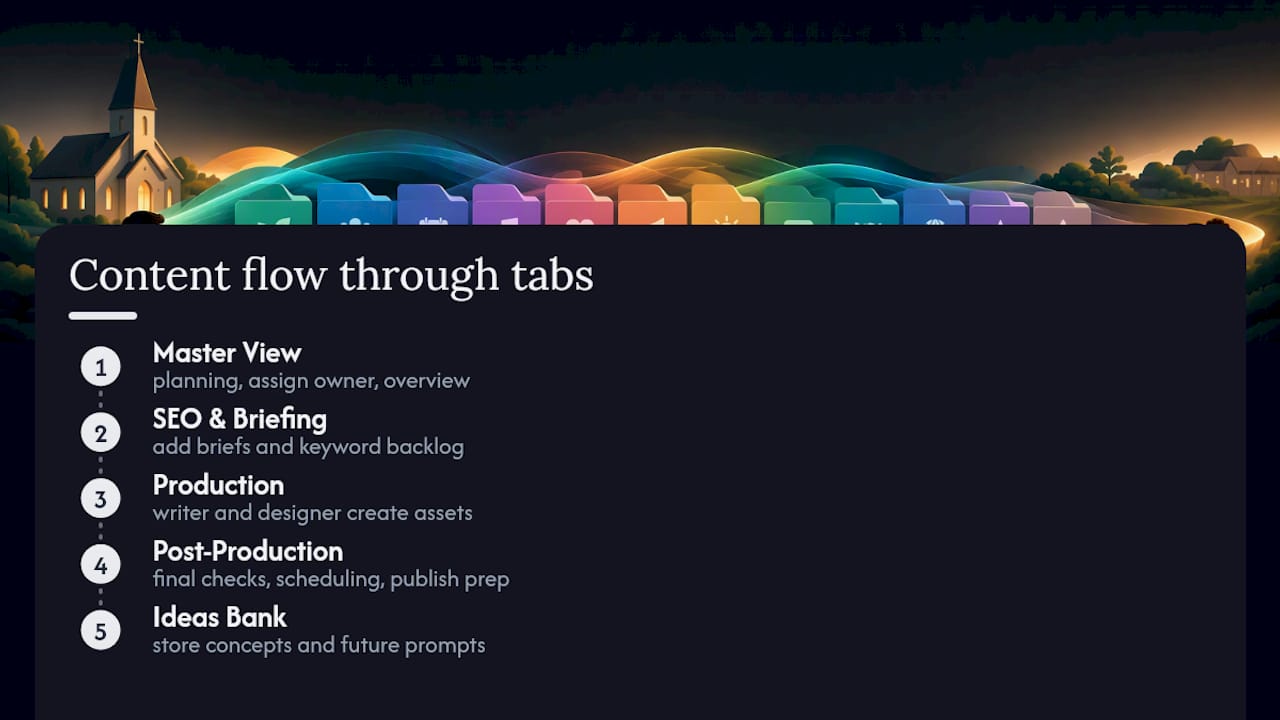
A multi-tab master calendar fits teams managing more than one channel or content type. The Backlinko content calendar template is a good example: it splits work across a Master View, SEO & Briefing, Production, Post-Production, and Ideas Bank tab. That separation matters once you have a writer, a designer, and a social media poster all touching the same piece at different stages.
A timeline-enabled template suits campaign planning, where multiple pieces need to launch in sequence around a date (a sermon series, a fundraising push, a product launch). Google Sheets' native Timeline view, covered in the next section, turns a flat row list into a visual bar chart without leaving the spreadsheet.
If you want a feature-rich starting point with built-in reporting, look at templates that bundle a quarterly theme planner, keyword backlog, and performance dashboard into one file. That's more structure than most small teams need on day one, but it's useful once you're tracking dozens of pieces a month.
Copying any of these takes seconds. Open the template, click File > Make a copy, and choose your own Drive folder. From there, share the copy with your team using View access for people who just need visibility and Edit access for anyone actually filling in rows. The AMA's Content Marketing & Editorial Calendar Toolkit also ships with yearly, monthly, and weekly views plus a content repository tab, and includes instructions for copying it into Sheets if you'd rather start there.
How Do You Build a Content Calendar in Google Sheets From Scratch?
Building your own gives you full control over structure, and it's not complicated. Here's the process, step by step.
- Name your file with a date convention. Something like "Content Calendar 2026 Q1" tells you at a glance which version you're looking at, and prevents six near-identical files cluttering your Drive.
- Type your 12 headers into row 1 and freeze that row. Select row 1, then go to View > Freeze > 1 row. This keeps column labels visible no matter how far down the sheet you scroll.
- Create a separate Lists tab. This tab holds your dropdown source values: status options, content types, channels. Keeping these off the main tab means one accidental edit doesn't break every dropdown in the file.
- Turn Status and Content Type into validated dropdowns. Select the column, open Data > Data validation, and choose "List from a range" pointing to your Lists tab. Google's own dropdown documentation recommends setting the rule to reject invalid input rather than just warn, which stops someone from typing "almost done" instead of picking "In Review."
- Add conditional formatting for overdue items. Highlight your Due Date column, open Format > Conditional formatting, and use a custom formula like
=AND($I2<TODAY(), $F2<>"Published")to turn a row red when it's past due and not yet live. - Build per-person views with QUERY. On a separate tab, a formula like
=QUERY(Main!A:L, "SELECT * WHERE D = 'Sarah' AND F <> 'Published'")pulls every open item assigned to Sarah, and only Sarah. This is the single biggest fix for calendars that fall apart with more than two contributors: one owner per row, no exceptions, so nobody has to guess who's responsible. - Protect your Lists tab and key formulas. Right-click the tab, choose Protect sheet, and restrict editing to yourself or one admin. This is what actually keeps the dropdowns from drifting into free text over time, which is the most common way shared calendars quietly stop being accurate.
- Save a master copy before each quarter and rename by date. Duplicate the file, archive the old one, and start the new quarter clean. This keeps historical data intact without letting old rows clutter your active view.
A practical build following this exact structure, including the 12 canonical columns, typically takes about 20 minutes from a blank sheet.
Pro Tip: Build your QUERY formulas once on a hidden "Formulas" reference tab before copying them into per-person views. It's much easier to debug a broken QUERY when you have a clean, working original to compare against.
What Columns Should a Content Calendar Have?
Twelve columns cover nearly every use case, from a solo blogger to a church communications team managing five channels. Anything beyond this list is usually optional until a specific recurring decision forces you to add it.
| Column | Purpose |
|---|---|
| ID | Unique row identifier, useful for QUERY formulas and sorting |
| Title | Working title of the piece |
| Content Type | Blog, social post, email, sermon clip, graphic, etc. |
| Owner | The single person accountable for this row |
| Reviewer | Who approves before publish |
| Status | Dropdown: Idea, Drafting, In Review, Scheduled, Published |
| Funnel Stage | Awareness, engagement, conversion, or similar |
| Primary Keyword | For SEO-driven content pieces |
| Due Date | Internal draft deadline |
| Publish Date | The actual go-live date |
| Channels | Where it's posted (blog, Instagram, church app, email) |
| Published URL | Link once it's live, for tracking and reference |
Two of these columns matter more than the rest. Owner must always name one specific person, never a team or department. The moment a row lists "Social Team" instead of a name, accountability disappears and nobody follow up. Status must be a dropdown, not free text. Once someone types "almost there" instead of selecting from your predefined list, your conditional formatting and QUERY filters stop working correctly, because they're matching exact text values.
The two formulas that do the most work in a calendar like this:
- Overdue flag:
=AND($I2<TODAY(), $F2<>"Published")marks any row where the due date has passed and the status isn't "Published." Apply this as a custom conditional formatting rule and set the fill color to red. - Per-owner filter:
=QUERY(Main!A:L, "SELECT * WHERE D = 'Marcus' AND F <> 'Published'")builds a live, filtered view for one person's open tasks. Because it references the main tab directly, it updates automatically as rows change, so nobody's working from a stale filter view they forgot to refresh.
Build your Lists tab before you build these dropdowns, and set validation to reject rather than warn. That single setting is what separates a calendar that stays accurate for a year from one that degrades into inconsistent free text by month two.
Should You Use a Monthly Grid, Weekly Tab, or Timeline View?
Different planning horizons need different layouts, and trying to force one view to do all three jobs is a common reason calendars get abandoned.
The master or yearly view is your single source of truth: every row, every column, sortable and filterable. This is where new content gets added and where QUERY formulas pull their data from. Nobody should be editing status or due dates anywhere else.
A monthly grid works well for stakeholders who want a quick visual scan without touching formulas. Pull it together with a pivot table or a simple filtered copy of the master tab, refreshed weekly.
A weekly execution tab is where day-to-day work actually happens. Filter the master view down to just this week's rows, sorted by due date, so contributors aren't scrolling through 200 rows to find what's due Thursday.
Timeline view is Sheets' built-in answer to visual, campaign-style planning. Here's how to set it up:
- Select your data range, including headers, then go to Insert > Timeline.
- Google will ask you to confirm which columns represent the card title, start date, and end date. It needs at least one properly typed date column to render correctly.
- Add card detail fields (Owner, Channel, Status) so hovering over a bar shows the full context.
- If your dates come from formulas, confirm they return actual date values rather than text strings that merely look like dates. Timeline view will silently fail to place cards correctly if the underlying data isn't formatted as a true date.
Use a dedicated visual tab when you're planning a campaign spanning several weeks with overlapping content types. For day-to-day tracking, filters and color-coding on the master sheet are faster than switching tabs constantly.
Team Rules That Keep a Shared Calendar Accurate
A content calendar dies the same way almost every time: someone types free text into the Status column, a dropdown source gets accidentally edited, and within a month nobody trusts the sheet anymore. A handful of governance rules prevent this.
- One owner per row, always. No shared ownership, no "team" listed as owner. If two people are involved, list the person accountable for the final decision.
- Protect the Lists tab. Restrict edit access so only an admin can add or change dropdown options.
- Use dropdowns for every status field, set to reject invalid entries rather than just flag them.
- Run a weekly maintenance pass. Someone checks for stale rows, overdue flags, and outdated links every week, not just when something breaks.
- Set draft deadlines 5 to 7 days before the publish date. This buffer absorbs review delays without pushing the actual publish date.
- Use per-person QUERY views for standups. Everyone opens their own filtered tab instead of scrolling the master sheet looking for their name.
The most common failure mode is a Status column that quietly reverts to free text because someone typed over a cell instead of selecting from the dropdown. The fix is protecting the Lists tab and re-locking validation rules the moment you notice drift.
Pro Tip: Once a month, count how many items sit in "In Review" for more than seven days. A growing backlog there almost always means your reviewer is the bottleneck, not your writers.
Choosing and Customizing Your Template
Match the template to your team, not the other way around. A solo creator forcing themselves into a five-tab SEO calendar wastes time on structure that solves problems they don't have. A five-person team trying to run everything off one flat tab will hit a wall the moment two people need different filtered views at once.
Once you've picked a base template, three customizations tend to pay off fastest:
- An Ideas Bank tab. A dumping ground for content ideas that aren't ready to schedule yet, so good ideas don't get lost in Slack threads or forgotten notes.
- A performance metric column. Even something simple, like views or engagement rate pulled in manually each month, turns your calendar into a feedback loop instead of just a to-do list.
- A post-production checklist column. Did the thumbnail get made? Was the link added to the newsletter? A simple checklist column catches the small steps that get skipped when everyone assumes someone else handled it.
The moment to move beyond Sheets is when you need real-time notifications, complex approval chains across departments, or automated syncing with a dozen other tools. Until then, a well-governed spreadsheet usually outperforms a heavier platform nobody fully adopts.
Why Simple Templates Beat Complex Ones
The biggest misconception about content calendars is that more columns and more views mean better planning. In practice, the opposite is usually true. A three-tab spreadsheet that gets updated every single day beats a twelve-tab system that gets abandoned by week three, every time.
Building editable templates for church communications teams makes this obvious fast. A volunteer-run social media team doesn't need a keyword backlog or a funnel-stage column on day one. They need to know who's posting Sunday's reel, whether the graphic is done, and whether it's actually gone live. Add complexity only when a real, recurring decision demands it, not because a template you found online included the feature.
Test whatever calendar you build for four to six weeks before adding a single new field. If nobody's referencing a column, cut it. If the team keeps asking the same question your sheet doesn't answer, that's your signal to add exactly one new field, not five.
— Benjamin
Ready-Made Templates Built for Church Teams
Most content calendar templates are built for marketing agencies or SEO teams, which means church communications leaders end up stripping out half the columns before the file even makes sense for their context. There are editable Google Sheets calendars designed specifically for church workflows, with sample data already filled in so you can see how a real row looks before you touch anything.
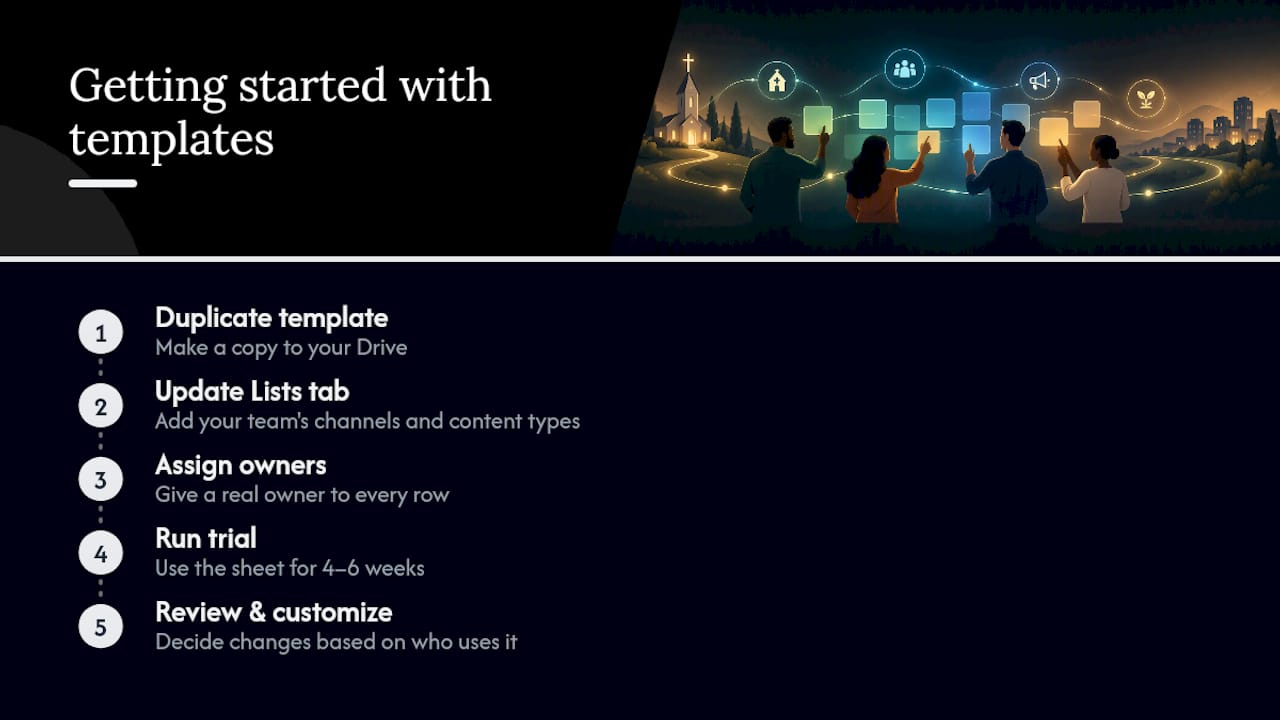
Every template comes in open formats that need no subscription and no paid software, just Google Sheets or an equivalent spreadsheet app you already have. To get started, duplicate the file into your own Drive, update the Lists tab with your team's actual channels and content types, assign a real owner to every row, and run it for four to six weeks before deciding what to customize. That trial window matters more than any feature list, because you'll find out fast whether your team actually opens the sheet or lets it go stale.
Bnjmndigital's Church Content, AI & Productivity, and Backgrounds & Design product lines cover everything from social media kits to full-year calendars built specifically around ministry planning cycles. Browse the current templates and pick the one that matches your team's size before your next planning meeting.
Key Templates and Docs Worth Bookmarking
For deeper reference, the AMA's Content Calendar Toolkit offers structured yearly, monthly, and weekly views with a reusable content repository. Backlinko's content calendar template is worth studying for its five-tab SEO structure. For the mechanics, Google's own support pages on dropdown validation and timeline view explain the exact settings behind both features.
Sources
- AMA Content Marketing & Editorial Calendar Toolkit
- Editorial Calendar Template for Google Sheets — Freak in the Sheets
- Create dropdown lists in a cell - Computer - Google Docs Editors Help
- Content calendar template (Backlinko)
- Free Content Calendar Template (Google Sheets) - Scale Growth Digital
FAQ
How Do I Make a Content Calendar in Google Sheets?
Start by copying an existing template, or build one with 12 columns covering owner, status, due date, publish date, and channels, then freeze the header row. Add dropdowns through Data > Data validation for status and content type fields, and layer in conditional formatting to flag overdue items automatically.
How Do I Create a Fillable Calendar in Google Sheets?
Set up dropdowns using Data > Data validation with a "List from a range" rule pointing to a separate Lists tab, and configure it to reject invalid entries rather than merely warn. This keeps every status field clickable and consistent instead of relying on free text that can drift over time.
What Does a Content Calendar Example Look Like?
A typical example includes rows for each content piece with columns for Title, Owner, Status, Due Date, Publish Date, and Channels, whether it's built in Excel or Google Sheets. Multi-tab versions, like the Backlinko template, separate that core tracker from SEO briefing, production, and post-production stages.
Is There a Google Sheets Content Calendar Template for 2026?
Yes. Free public templates on Google Drive can be copied directly into your own account by opening the file and choosing File > Make a copy, and you simply rename the file to reflect the current year or quarter. Bnjmndigital also offers editable, church-specific calendar templates that come pre-loaded with sample data for immediate use.
Should I Use a Single Tab or Multiple Tabs for My Calendar?
A single tab works well for solo creators or two-person teams managing one or two channels. Once you're coordinating across three or more channels or content types, a multi-tab structure with separate production and post-production stages, like Backlinko's format, keeps the workflow from getting cluttered.